So you started with Nextcloud, got the basics running, connected your Identity Provider and start looking for apps that can do a 1o1 Microsoft replacement. Everyone agrees the data should live somewhere you control and then a project manager opens the list of teams, counts 100, 200 or more teams, and quietly works out that recreating them by hand is weeks of mindless but expensive clicking.
That is usually where it stops. Not because the destination is worse, but because the work is unreasonable and the enthousiasm quickly faded.
Enter TeamHub , it adds bulk import, which turns this tedius issue to a few clicks and one upload. TeamHub is a Nextcloud app that brings a team based view to Nextcloud by building upon Nextcloud teams and many other apps
This post covers how the import works, what the file looks like, how to get one out of Microsoft Teams, and what to check before you press the button.
What actually needs to move
A team in Microsoft Teams is a name, description, a set of owners, a set of members, and some tabs. Tedious to recreate. Files can be moved through backup and restore. Messages are a separate question. Bulk import, imports the structure, not the chat history. We aim to include that in a v2 version.
In practice that matters less than it sounds. Old chat is usually kept for compliance rather than for reading, and it can stay where it is, or be exported to archive storage, while day-to-day work moves. What people need on Monday morning is their team, their people and their files — not last March's thread about the printer.
So the goal is narrow, achievable and removes lock-in: every team exist in Nextcloud, with the right people in it, on day one at the foundation layer (Nextcloud Teams), so there is no TeamHub lock-in
Still interested? Read below for more indepth info
The file
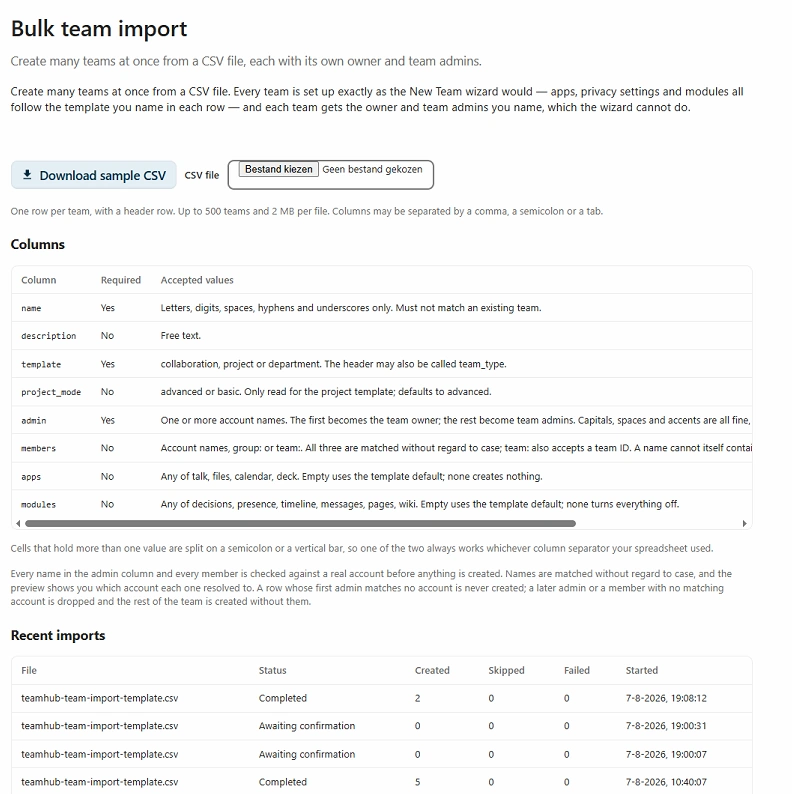
Bulk import reads a CSV with eight columns:
| Column | What goes in it |
|---|---|
name | The team name. Letters, digits, spaces, hyphens and underscores |
description | Free text, shown on the team home |
template | project, collaboration or department |
project_mode | Whether the team starts in project mode |
owner | One account — the person who owns the team |
members | Everyone else, separated by semicolons |
apps | Which Nextcloud apps appear as tabs |
modules | Which TeamHub modules are switched on |
The separators are forgiving. The file can be comma, semicolon or tab separated, and cells holding several values accept either semicolons or vertical bars — which matters more than it sounds, because a Dutch or German Excel export is semicolon-separated by default and would otherwise need fixing by hand.
The template column is the one worth thinking about, because it decides which modules a team starts with. Three options:
project— for work with a start and an end. Phases, milestones, budget and time.collaboration— for a group that works together continuously without a delivery date.department— for a standing organisational unit.
If you are not sure, collaboration is the safe default. Modules can be switched on later per team; nothing here is a one-way door.
Getting the file out of Microsoft Teams
The Teams admin centre will give you a team list, but not in this shape.
Send us a mail at teamhub@tldr.host if you are interested in receiving the link to the export procedure we used.Two mismatches will bite you, and both are better handled in the export than in TeamHub:
- Microsoft Teams allows several owners. The import takes one. The first alphabetical will be the owner. The others will become admins so nobody loses access.
- Team names travel badly. Slashes and emoji are common in Teams names and are not all valid in TeamHub. Sanitise on the way out, and keep a record of what you changed.
It is worth writing a second file at the same time: a warnings list of teams with no owner, teams with several owners, names that were changed, duplicates, and accounts that could not be matched. That file is what you send to the department heads before you import anything.
The migration is not the hard part. Agreeing who owns what, before you press go, is the hard part. A warnings file turns that from a meeting into an email.
The dry run
This is the step that makes the whole thing safe, so do not skip it.
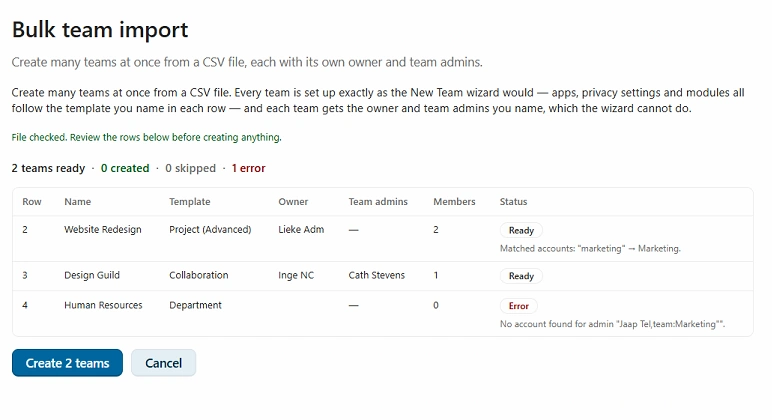
Upload the file and TeamHub validates every row without creating anything. It resolves each owner and member against real Nextcloud accounts and tells you which ones it could not find. It flags duplicate team names. It shows you exactly what will exist when you confirm.
Typical first-run findings, in rough order of frequency:
- People who left, still listed as members
- Accounts that exist in Microsoft Entra but were never provisioned in Nextcloud
- Two teams that turn out to have the same name once you strip the emoji
- A department that has been quietly dead for a year
None of these are import problems. They are the inventory you never had, and it is much cheaper to see them here than after 200 teams exist.
One deliberate piece of leniency: a row asking for advanced projects without an active licence becomes a basic project instead of failing. One missing licence does not stop the run.
Pressing the button
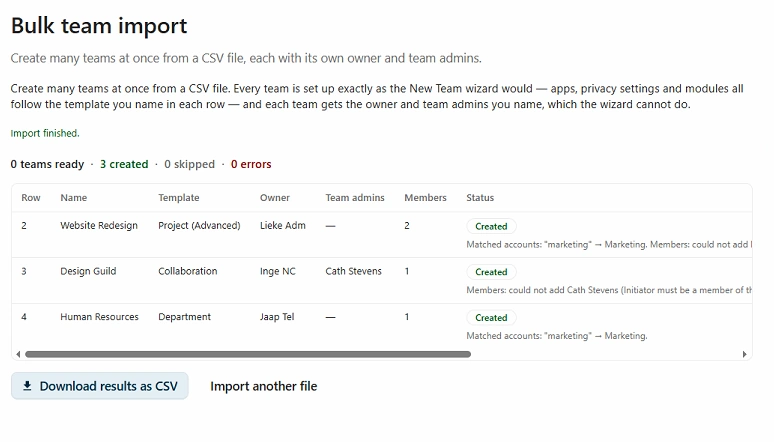
Confirm and the teams are created with live progress. Limits are 500 teams and 2 MB per file, which is a lot of teams — and if you have more, split the file by department and run it more than once. There is no harm in several runs.
You get a results CSV at the end with the outcome of every row. Keep it. It is the answer to "did Marketing actually get created?" three weeks later, and it is the thing you attach to the change record.
The flow, end to end:
- Export from Microsoft Graph to CSV
- Fill the
templatecolumn and fix the warnings - Upload and dry run
- Confirm
- Keep the results CSV
Realistically the export and the cleanup take an afternoon. The import itself takes minutes.
Why this matters beyond convenience
There is a reason we built this rather than writing a migration guide and wishing people luck.
The argument for self-hosting is rarely lost on the merits. It is lost on switching cost. If leaving a hyperscaler means a quarter of manual work, most organisations stay where they are and keep paying — not because they think it is right, but because the exit is priced out of reach. That is not really a technology decision.
Removing that first day of clicking is the point. Your teams end up on hardware you own, under AGPL-3.0, with no seat count and no vendor able to change the terms — a sovereign solution your organisation actually controls, and one you can leave again if you want to, since the export is a CSV too.
That last part is deliberate. A migration path that only runs one way is just a different kind of lock-in.
Getting started
Bulk import lives in Admin settings → TeamHub → Import/Export, and there is a sample CSV there to match your columns against. Full detail is in the 4.6.11 release notes, and the documentation covers the column formats in more depth.
If you are sizing a migration and want a second opinion on the export, get in touch — we would rather help you plan it than watch it stall at the spreadsheet.